HWMonitor

Advanced Hardware Monitoring Software

Monitor your computer's performance in real-time. Display temperatures, fan speeds, voltages, and complete system information.

CPU 45°C
GPU 52°C
Fan Speed 1200 RPM

Key Features

🌡️

Temperature Monitoring

Monitor CPU, GPU, and hard drive temperatures in real-time

🌀

Fan Speeds

Track all fan speeds in your system to ensure optimal cooling

Voltages

Monitor voltages for all system components to ensure stability

📊

System Information

Display detailed information about all computer components

💾

Data Logging

Save data logs for long-term performance analysis

🎨

Easy Interface

Simple, clear, and user-friendly interface

Screenshots

HWMonitor Main Interface showing comprehensive system information including CPU temperature, GPU temperature, fan speeds, and voltage monitoring
🖥️

Comprehensive information display

CPU temperature monitoring and details in HWMonitor showing real-time processor temperature readings

CPU details and temperature

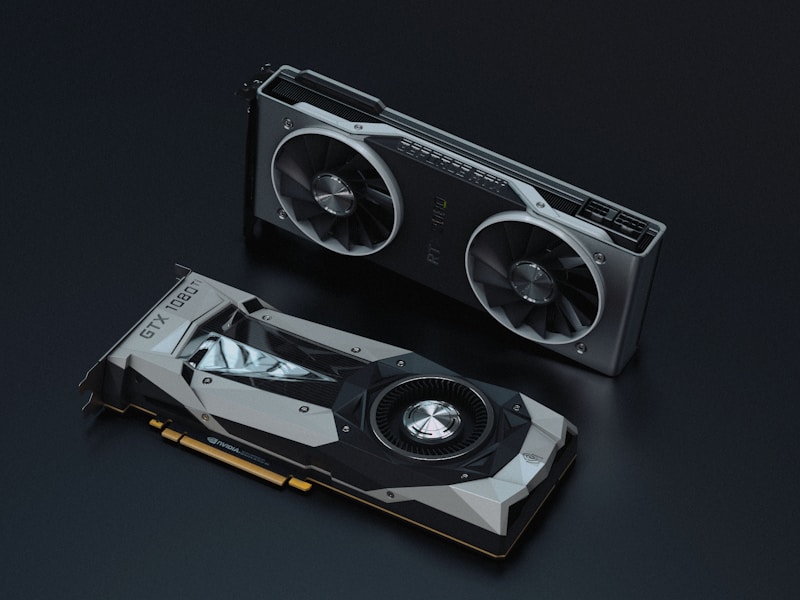
GPU performance monitoring and temperature tracking in HWMonitor displaying graphics card temperature and fan speeds
🎮

GPU performance monitoring

Download

HWMonitor - Latest Version

Version: 1.52

  • ✓ Supports all Intel and AMD processors
  • ✓ Compatible with Windows 7/8/10/11
  • ✓ Small size and fast performance
  • ✓ Completely free

Helpful Articles & Guides

CPU temperature monitoring guide

How to Monitor CPU Temperature with HWMonitor

Learn how to effectively monitor your CPU temperature using HWMonitor. Discover optimal temperature ranges for different processors and how to prevent overheating issues...

Read More →
GPU temperature troubleshooting guide

Fixing High GPU Temperatures: Complete Guide

Is your GPU running too hot? This comprehensive guide covers common causes of high GPU temperatures, how to use HWMonitor to diagnose issues, and proven solutions...

Read More →
Fan speed and cooling optimization

Understanding Fan Speeds and Cooling Optimization

Master the art of fan speed monitoring. Learn what RPM values are normal, how to optimize your cooling setup, and when to replace failing fans based on HWMonitor data...

Read More →
Overclocking safety with HWMonitor

Overclocking Safety: Using HWMonitor to Prevent Damage

Essential safety tips for overclockers. Learn how to use HWMonitor to track temperatures and voltages during overclocking to ensure system stability and longevity...

Read More →
HWMonitor software comparison

HWMonitor vs Other Hardware Monitoring Tools

Comprehensive comparison of HWMonitor with other popular hardware monitoring software. Features, accuracy, ease of use, and which tool is best for your needs...

Read More →
CPU temperature spike causes

Why Your CPU Temperature Spikes: Common Causes

Discover why your CPU temperature suddenly spikes and how to identify the root cause using HWMonitor. Common issues include thermal paste problems, dust buildup, and more...

Read More →

User Reviews & Experiences

Michael Chen
★★★★★

"HWMonitor saved my PC! I noticed my CPU was hitting 90°C during gaming. After cleaning my cooler and reapplying thermal paste, temperatures dropped to 65°C. This tool is essential for any PC enthusiast."

Michael Chen Gaming PC Builder
Sarah Johnson
★★★★★

"As an overclocker, I rely on HWMonitor daily. The real-time voltage monitoring helped me find the perfect stable overclock for my Ryzen 9. The interface is clean and the data is always accurate."

Sarah Johnson PC Overclocking Enthusiast
David Martinez
★★★★☆

"Great free tool! I use it to monitor my workstation during video editing. It helped me identify that one of my case fans was failing. Simple, lightweight, and does exactly what it says."

David Martinez Video Editor
James Wilson
★★★★★

"I've been using HWMonitor for 3 years now. It's the first thing I install on any new PC. The logging feature is perfect for tracking temperature trends over time. Highly recommended!"

James Wilson IT Professional
Emily Brown
★★★★★

"Fixed my laptop overheating issue thanks to HWMonitor. I discovered my GPU was running at 95°C! After cleaning the vents and replacing thermal paste, it's now running cool at 75°C under load."

Emily Brown Laptop User
Robert Taylor
★★★★☆

"Perfect for monitoring my mining rig. I can track all GPU temperatures simultaneously and set up alerts. The portable version is great - no installation needed. Excellent tool!"

Robert Taylor Crypto Miner

Frequently Asked Questions & Troubleshooting

What is a normal CPU temperature?

Normal CPU temperatures vary by processor, but generally:

  • Idle: 30-50°C (86-122°F)
  • Under Load: 60-80°C (140-176°F)
  • Maximum Safe: 85-95°C (185-203°F) depending on CPU model

Use HWMonitor to track your CPU temperature and compare it to your processor's specifications. If temperatures consistently exceed 80°C under normal load, consider improving cooling.

Why is my GPU temperature so high?

High GPU temperatures can be caused by several factors:

  • Dust buildup: Clean your GPU fans and heatsink regularly
  • Poor airflow: Ensure your case has adequate intake and exhaust fans
  • Thermal paste: May need replacement if GPU is older than 2-3 years
  • Fan failure: Check if GPU fans are spinning properly using HWMonitor
  • Overclocking: Reduce overclock settings if temperatures are unsafe

Monitor your GPU temperature with HWMonitor during gaming or intensive tasks. If it exceeds 85°C, take action to improve cooling.

How do I fix HWMonitor not detecting sensors?

If HWMonitor isn't detecting your hardware sensors, try these solutions:

  • Run as Administrator: Right-click HWMonitor and select "Run as administrator"
  • Update drivers: Ensure your motherboard chipset drivers are up to date
  • Check compatibility: Verify your hardware is supported (most modern hardware is)
  • Restart the program: Close and reopen HWMonitor
  • Update HWMonitor: Download the latest version from the official website

Some older or very new hardware may not be fully supported. Check the CPUID website for compatibility information.

What fan speed is normal?

Normal fan speeds depend on the fan type and size:

  • Case fans (120mm): 800-1500 RPM at idle, 1500-2500 RPM under load
  • CPU cooler fans: 600-1200 RPM at idle, 1500-3000 RPM under load
  • GPU fans: 0-1000 RPM at idle (many stop completely), 2000-4000 RPM under load

Use HWMonitor to track your fan speeds. If fans are running at maximum speed constantly, check for dust, improve airflow, or replace failing fans.

Is HWMonitor safe to use?

Yes, HWMonitor is completely safe to use. It's a read-only monitoring tool that:

  • Only reads sensor data - it doesn't modify any system settings
  • Doesn't require installation (portable version available)
  • Is developed by CPUID, a trusted software company
  • Has been used by millions of users worldwide for years
  • Doesn't collect or transmit any personal data

Always download HWMonitor from the official website (hwmonitor.net) to ensure you're getting the legitimate, malware-free version.

How can I reduce my CPU temperature?

Here are effective ways to lower CPU temperature:

  • Clean your PC: Remove dust from CPU cooler, fans, and case
  • Reapply thermal paste: Replace old thermal paste between CPU and cooler
  • Improve case airflow: Add more case fans or optimize fan placement
  • Upgrade CPU cooler: Consider a better air cooler or AIO liquid cooler
  • Check fan speeds: Ensure CPU cooler fan is running at proper speeds
  • Reduce overclock: Lower overclock settings if applicable
  • Undervolt: Reduce CPU voltage while maintaining stability

Monitor your improvements using HWMonitor before and after making changes to see the temperature difference.

Can HWMonitor damage my computer?

No, HWMonitor cannot damage your computer. It's a passive monitoring tool that:

  • Only reads sensor data from your hardware
  • Doesn't change any BIOS or system settings
  • Doesn't overclock or modify hardware behavior
  • Uses minimal system resources

HWMonitor is like a thermometer - it only tells you the temperature, it doesn't control it. You can safely run it 24/7 without any risk to your hardware.

Why are my temperatures different in HWMonitor vs other software?

Temperature readings can vary between monitoring tools due to:

  • Different sensors: Software may read from different temperature sensors
  • Update frequency: Some tools update faster than others
  • Calibration: Different software may apply different offsets or corrections
  • Sensor accuracy: Some sensors are more accurate than others

HWMonitor is generally considered one of the most accurate monitoring tools. Small differences (2-5°C) are normal. If you see large discrepancies (10°C+), verify sensor readings in BIOS or try updating your motherboard drivers.

About HWMonitor

HWMonitor is a free hardware monitoring program that provides accurate real-time information about your computer components' status. The program is ideal for users who want to monitor their hardware performance, especially when performing heavy tasks or overclocking.

HWMonitor is developed by CPUID, the leading company in hardware monitoring software. The program is lightweight, fast, and requires no installation - you can run it directly from a USB drive or any folder on your computer.

Why Choose HWMonitor?

With millions of downloads worldwide, HWMonitor has become the go-to solution for hardware monitoring. Whether you're a gamer tracking GPU temperatures, an overclocker monitoring voltages, or a professional maintaining server systems, HWMonitor provides the accurate data you need.

Key Benefits:

  • Real-time monitoring of CPU, GPU, and system temperatures
  • Track fan speeds and identify cooling issues
  • Monitor voltages to ensure system stability
  • Lightweight and portable - no installation required
  • Compatible with all modern Windows versions
  • Supports Intel and AMD processors
  • Free and regularly updated

Our website provides comprehensive guides, user reviews, and troubleshooting tips to help you get the most out of HWMonitor. Browse our articles section for detailed tutorials on temperature management, cooling optimization, and hardware diagnostics.